
AI image and video tools have made it possible to transform an ordinary photograph into a completely different cinematic character. If you want to create a MaaParvati AI Video Prompt using your own photo, you can combine an AI image generator with Google Flow to build a short devotional-style cinematic reel.
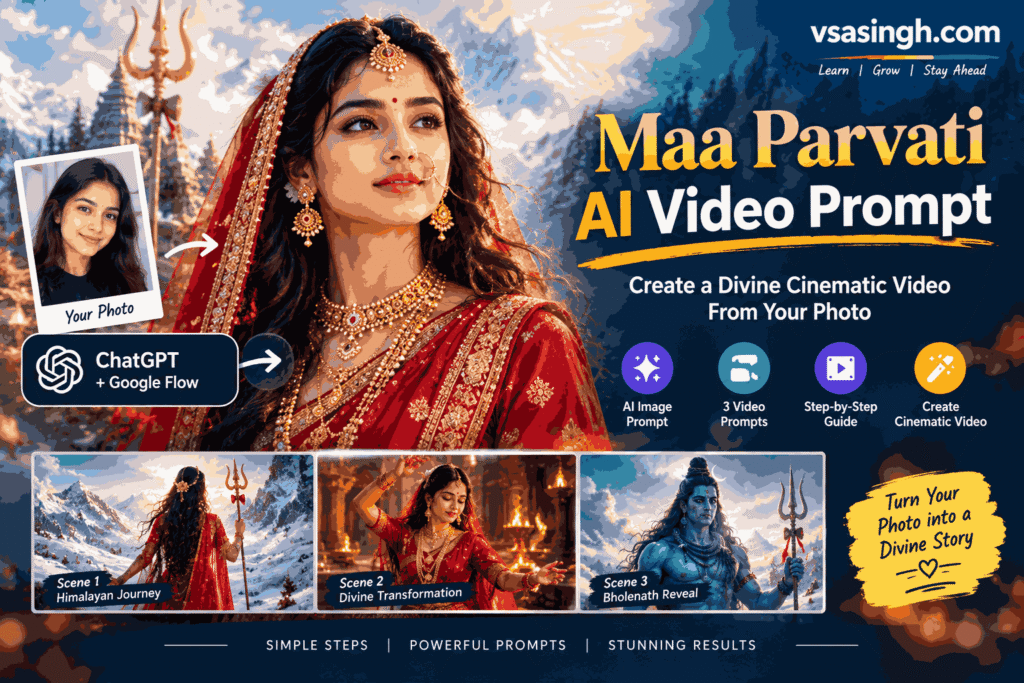
In this guide, vsasingh.com shares a complete workflow—from creating the initial AI portrait to generating three connected video scenes.
You can create the image first and then use it as a reference for your video. MaaParvati-inspired AI transformation video The overall concept features traditional Indian styling, a red saree, golden jewellery, Himalayan landscapes, divine lighting and a cinematic mythology-inspired atmosphere.
Note: This is an AI-generated, Maa Parvati-inspired creative concept. It is intended for artistic and devotional-style content.
Why Are Maa Parvati-Inspired AI Videos So Popular?
Devotional AI transformations have become an interesting way for creators to combine Indian mythology, cinematic visuals and modern AI technology.
A Maa Parvati-inspired video can be made visually powerful by combining elements such as:
- Traditional red saree and golden jewellery
- Himalayan mountains and snowy landscapes
- Divine cinematic lighting
- Temple environments
- Trishul and other traditional visual elements
- Smooth camera movements
- Dramatic character transitions
- Shiva-Parvati-inspired storytelling
The combination of these elements can give a normal photograph a completely different cinematic appearance.
At vsasingh.com, the goal is to make this process simple enough that beginners can experiment with AI creative tools without needing advanced video-editing skills.
MaaParvati AI Photo Prompt
Before creating the video, start by generating a suitable AI portrait.
Upload a clear front-facing photograph as your reference image. Then use the prompt below.
✦ AI Image Prompt
Turn my uploaded photograph into a cinematic portrait inspired by the divine appearance of Maa Parvati. Preserve my original facial identity, facial structure and natural skin tone as accurately as possible.

Style the character in a traditional deep-red saree featuring elegant golden embroidery and detailed borders. Add long, naturally flowing black hair, a traditional golden maang tikka, a delicate nath with chain and refined Indian gold jewellery.

Place the character in a majestic Himalayan environment with snow-covered mountains, soft mist and subtle heavenly light in the background. Give the scene a peaceful yet powerful devotional atmosphere.

Keep the skin realistic, facial details natural and clothing highly detailed. Use cinematic lighting, realistic textures, shallow depth of field and a premium photorealistic appearance.

Portrait composition, vertical 4:5 format, cinematic Indian mythology-inspired visual style.
Tip for a Better Result
Your reference photograph has a major impact on the final image. Use a picture where:
- Your face is clearly visible
- Lighting is reasonably good
- The face is not heavily covered
- The image is not blurry
- You are looking approximately toward the camera
If the first generation doesn’t look right, modify the clothing, jewellery or background instructions rather than repeatedly changing the identity-preservation instructions.
How to Create the MaaParvati AI Image
Creating the starting image is relatively simple.
Step 1
Open ChatGPT or another AI image-generation tool that supports image references.
Step 2
Upload your clear reference photograph.
Step 3
Copy the Maa Parvati-inspired image prompt from this guide.
Step 4
Paste the prompt into the same conversation and generate the image.
Step 5
Check the result carefully.
Pay particular attention to:
- Face consistency
- Saree design
- Jewellery
- Hair
- Background
- Lighting
- Overall realism
Step 6
If something needs improvement, ask the AI to modify that specific part.
For example:
“Keep the face and outfit unchanged, but make the Himalayan background more cinematic and realistic.”
Once you have a satisfactory image, use it as the starting point for your video.
MaaParvati AI Video Prompt for Google Flow
Now comes the main part.
Instead of trying to generate a complete 30-second sequence in one prompt, divide the concept into three 10-second scenes.
This gives you more control over the character, environment and camera movement.
Video Structure
| Scene | Duration | Main Focus |
|---|---|---|
| Video 1 | 0–10 sec | Himalayan introduction |
| Video 2 | 10–20 sec | Temple and divine transformation |
| Video 3 | 20–30 sec | Lord Shiva/Bholenath reveal |
Generate the clips separately and then combine them in your preferred video editor.
Video 1 — Himalayan Introduction
The first scene establishes the character and environment.
Use your AI-generated Maa Parvati-inspired image as the reference/start frame.
✦ Google Flow Prompt
Create a 10-second photorealistic cinematic Indian mythology-inspired video in vertical 9:16 format, 1080x1920 resolution and 24fps.

Use the supplied reference image to maintain the same female character and preserve her facial identity consistently throughout the scene.

Begin with a cinematic close-up of an ancient metallic trishul partially embedded in clear frozen Himalayan ice. Show small frost particles and natural snow around it.

Slowly move the camera upward and reveal the woman wearing an elegant deep-red saree with detailed golden embroidery. Her long dark hair moves naturally with the cold mountain wind.

Gradually reveal her face while maintaining the facial characteristics of the supplied reference image. She wears traditional gold jewellery, a maang tikka and nath.

Behind her, reveal majestic snow-covered Himalayan peaks surrounded by soft mist.

Cut to a wide cinematic shot showing several ascetics walking across the frozen landscape. An elderly sage with long white hair and beard approaches the woman.

Show the sage stopping in front of her and raising his hand in a peaceful divine blessing gesture.

End with a close-up of the woman as her expression changes from calmness to quiet determination.

Use realistic snow, natural wind, detailed fabric movement, cinematic depth of field and controlled camera motion.

No background music, no subtitles, no captions, no text and no watermark.
Video 2 — Temple Transformation Scene
The second clip should continue visually from the first one.
For better continuity, use the final frame of Video 1 as the starting/reference frame for Video 2 whenever your workflow supports it.
✦ Google Flow Prompt
Create a 10-second photorealistic cinematic Indian mythology-inspired video in vertical 9:16 format, 1080x1920 resolution and 24fps.

Continue with the same female character from the reference image. Preserve her facial identity, hairstyle and red saree consistently.

Begin with a dramatic close-up of the woman wearing an elegant traditional golden crown with subtle crescent-moon-inspired detailing.

Transition into an ancient Shiva temple illuminated by warm firelight. The environment should feel mysterious, spiritual and cinematic.

Show the woman performing a powerful classical-inspired dance. Her red saree, flowing veil and long dark hair should move naturally with the motion.

Use cinematic camera movement while avoiding unnatural body deformation or excessive motion.

Reveal a large stone representation of Lord Shiva in the background, surrounded by soft smoke and glowing embers.

Move between wider dance shots and emotional close-ups of the woman's face.

Then transition from the temple to a bright Himalayan landscape. Cold sunlight breaks through the clouds and illuminates her face.

Finish with an extreme close-up of her eyes, showing detailed natural irises and subtle reflections of the snowy mountains.

A very soft golden divine glow gradually appears around her face.

Photorealistic skin, realistic fabric, detailed jewellery, natural movement, cinematic lighting and atmospheric depth.

No music, no text, no subtitles, no captions and no watermark.
Video 3 — Bholenath Cinematic Reveal
The final scene introduces Lord Shiva and gives the entire sequence a powerful ending.
Unlike the first two clips, this scene doesn’t require the woman’s face.
✦ Google Flow Prompt
Create a 10-second photorealistic cinematic Indian mythology-inspired video in vertical 9:16 format, 1080x1920 resolution and 24fps.

Start with an extreme close-up of a realistic cobra under cool divine lighting. Slowly reveal the snake coiled naturally around Lord Shiva's neck.

Move the camera downward to reveal Shiva's blue-toned body decorated with traditional rudraksha beads and a subtle divine aura.

Cut to a detailed close-up of his hand holding an ancient metallic trishul.

Slowly tilt the camera upward and reveal Lord Shiva with long matted jata, a crescent moon in his hair and a calm, powerful expression.

Show three traditional horizontal Tripundra ash lines on his forehead with a central red mark.

Move into a cinematic close-up of his eyes, expressing peace, wisdom and divine strength.

Then transition to a wide low-angle shot of Lord Shiva standing majestically against bright clouds and snow-covered Himalayan peaks while holding the trishul.

The cobra remains calm and subtly raises its hood.

In the final moment, Shiva slowly lifts the trishul as bright divine light breaks through the clouds and creates a dramatic halo effect.

End with a smooth cinematic fade to black.

Use realistic skin, hair, rudraksha, metal, snow, atmospheric particles and natural lighting.

No background music, no text, no captions, no subtitles and no watermark.
How to Generate the Video in Google Flow
Once your image and prompts are ready, you can move to the video-generation stage.
Basic workflow
- Open Google Flow.
- Start a new project.
- Choose the image-to-video/frames-to-video workflow available in your account.
- Select the appropriate video model.
- Upload your AI-generated reference image.
- Set the video to 9:16 vertical format for Shorts/Reels.
- Paste the Video 1 prompt.
- Generate the first clip.
- Review the face and movement.
- Use the appropriate final frame/reference for Video 2.
- Generate Video 2.
- Generate Video 3 separately.
- Combine all three clips in your video editor.
- Add your chosen devotional audio, transitions and final effects during editing.
Important: Google Flow’s available models, features, limits and interface can change, so the exact options may look different in your account.
How to Make the AI Video Look More Cinematic
A good prompt is only one part of the result. Camera movement also matters. Maa Parvati AI Video Editing
Try using:
- Slow push-in shots
- Gentle camera reveals
- Controlled tracking movements
- Wide establishing shots
- Close-ups for emotional moments
- Smooth transitions between scenes
- Natural hair and fabric movement
Avoid filling every second with fast action. Excessive movement can make MaaParvati AI video promp AI-generated faces, hands and clothing less consistent.
A simple cinematic sequence often looks better than a scene containing too many actions at once.
Common Mistakes to Avoid
1. Starting With a Low-Quality Photo
A blurry or poorly lit reference image can make facial consistency much harder.
Use the clearest suitable image you have.
2. Changing the Character Too Much
If every video uses completely different clothing, hairstyle and facial instructions, the character may look different from one scene to another.
Keep the important visual characteristics consistent.
3. Using the Same Image for Every Scene
For connected scenes, use the previous scene’s final frame where possible. This can help create a smoother visual transition.
4. Adding Too Much Movement
Fast camera movements and complicated body actions can increase AI artifacts.
For cinematic results, controlled movement is usually more reliable.
5. Adding Music Inside the AI Prompt
It is generally better to generate the video without music and add your selected audio later in your editing software.
Also make sure the music you use is permitted for the platform where you plan to publish the video.
Frequently Asked Questions
Is this Maa Parvati AI prompt free?
The prompts shared in this vsasingh.com guide are provided for creative use. However, the AI platforms you use may have their own free-generation limits, credits, subscriptions or usage restrictions.
Those limits can change over time.
Which AI tools can be used for the image?
The image prompt can be adapted for AI image generators that support reference images. The exact result will depend on the tool, model and quality of your uploaded photograph.
Can the face remain similar to my original photo?
You can instruct the AI to preserve your facial identity, but AI generation cannot guarantee perfect identity preservation every time. MaaParvati AI Video Prompt 2026
If the face changes noticeably, try:
- A clearer reference photo
- Better lighting
- A front-facing photograph
- Stronger identity-preservation instructions
- Regenerating the image/video
Can boys use this concept?
Yes, but the female MaaParvati-inspired styling in the first two prompts is designed around a feminine character.
For a male version, you can create a separate Shiva/Bholenath-inspired visual using elements such as jata, rudraksha, traditional attire and a Himalayan setting.
Can I upload the finished video to YouTube Shorts or Instagram Reels?
The prompts are designed around a vertical 9:16 format, which is commonly used for short-form video platforms.
Before publishing, check the current platform requirements and make sure any music, images or other assets you add have the necessary rights.
Why does my result look different from the example?
AI generation is not perfectly deterministic. Results can vary depending on:
- AI model
- Reference image
- Prompt wording
- Generation settings
- Video duration
- Camera movement
- Number of regeneration attempts
Instead of expecting the first generation to be perfect, create a few variations and select the strongest result.
Final Thoughts
Creating a MaaParvati-inspired cinematic AI video doesn’t necessarily require professional video-editing experience. The process can be divided into three simple stages:
Photo → Video Scenes → Final Edit
First, create a detailed AI portrait from your reference photograph. Then use the portrait to generate connected cinematic scenes in a suitable AI video tool. Finally, combine the clips and add your preferred audio and finishing touches.
The key to getting better results is consistency. Use a good reference image, keep the character’s appearance stable and avoid unnecessary camera or body movement.
With the right combination of prompts and creative editing, you can turn a simple photograph into a visually impressive devotional-style AI reel. MaaParvati AI video prompt for ChatGPT
More AI prompts, tutorials and practical technology guides:
vsasingh.com
Leave a Reply